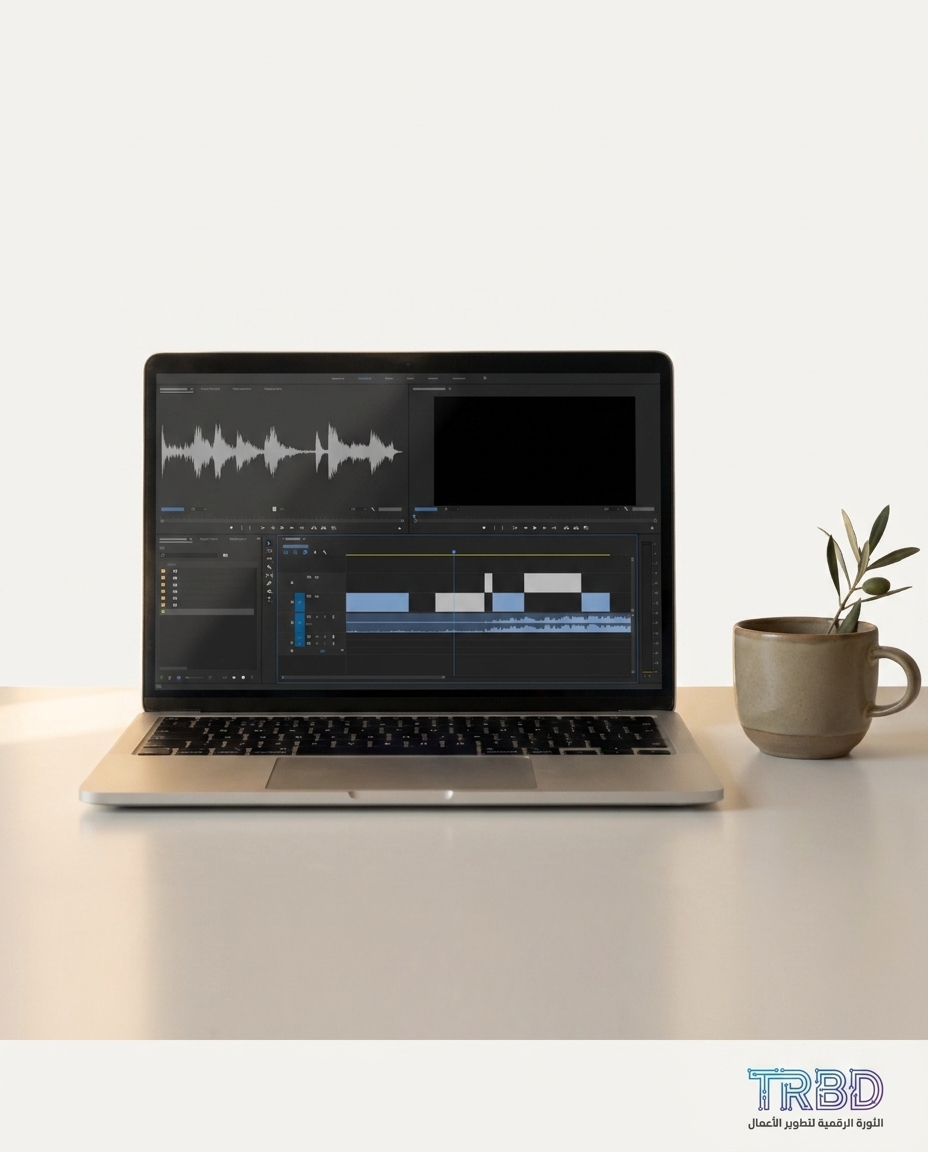
Descript review for Arab businesses becomes urgent when one clip forces you to juggle 3 to 5 tools: phone camera, one editor to cut, another app for text, and a separate site for captions. The cost is time and momentum. Posts slip, and promotions stall because the promised video isn’t out. If you run a shop or F&B place, you want one lane that handles recording, transcription, cutting, and captions in one place — that’s where the Descript platform helps.
What you’ll learn
- How to set up a simple project in the Descript platform without tech fuss.
- Transcribe Arabic and English audio, and fix errors quickly.
- Edit video by changing text instead of wrestling with a classic timeline.
- Auto-remove stutters and long pauses with Remove filler words and Shorten word gaps.
- Record a podcast or business intro, then clean audio with Studio Sound.
- Generate captions/subtitles, then style and sync them.
- When and how to use Overdub ethically and with clear consent.
- Export platform-ready cuts and publish faster.
Prerequisites before you start
- A Descript account and a plan that matches your needs (start free, upgrade for advanced features).
- A laptop or desktop, plus basic headphones to hear noise and fix it.
- A practical mic (a simple USB mic is fine) or a quiet phone recording.
- Footage or audio to test: a product video, a kitchen moment, or a voice note for customers.
- Clear consent from any person whose voice you clone with Overdub, if you plan to use it.
- Your logo file and brand colors to keep captions on-brand.
- Stable internet for transcription and export.
- Basic typing in Arabic and English to tidy transcripts.
Steps
Before we dive deep, here’s a quick numbered overview — follow this order:
- Set up the project: create and name it clearly.
- Import media: drag video or audio into the workspace.
- Transcribe: run Arabic or English transcription.
- Clean the text: correct words, remove filler, fix long gaps.
- Improve audio: enable Studio Sound and reduce noise.
- Overdub (optional): train voice and use for small fixes.
- Add captions: generate, style, and sync timing.
- Insert B-roll: layer visuals on key words.
- Platform cuts: square and vertical versions.
- Export and publish: balanced quality, clear naming.
Step 1: Project setup
- Open the Descript platform and choose New project.
- Name it clearly: “Today’s special sandwich” or “Cash drawer instructions.”
- Create a folder inside the project for royalty-free music and your logo.
Step 2: Import video or audio
- Drag your file into the window, or click Import files.
- If you have a voice note from the WhatsApp app, download it as a file first, then import.
- Let the initial processing finish before editing.
Step 3: Arabic and English transcription
- In the text panel, click Generate transcript.
- Pick the language: Arabic for local content, English if you target tourists.
- Review the first minute: fix local dish names right away with Replace all.
Step 4: Text-based editing beats the timeline
- Select filler words and click Remove filler words.
- Enable Shorten word gaps to trim long silences.
- Any unneeded sentence? Highlight it in text and delete — the platform cuts it on the video automatically.
Step 5: Audio cleanup and noise control
- In audio settings, enable Studio Sound.
- Try Noise reduction gently to avoid robotic tone.
- If the level is low, adjust Clip gain instead of boosting room noise.
Step 6: Overdub (optional, with consent)
- Open Overdub and follow the training prompts for the authorized voice.
- Use it to correct a misnamed price or add a short clarifying line.
- Avoid building whole videos on cloned voice if your audience knows you — keep it to micro-fixes.
Step 7: Add captions and style them
- From captions, click Add captions.
- Tweak look in Styles: readable font, high-contrast color, semi-transparent background.
- If you serve two audiences, add a second subtitle track and rely on Auto-sync, then spot-fix tricky spots.
Step 8: B-roll on top of key words
- Place the cursor on a word like “shawarma,” then Add media to drop a close-up shot.
- If you lack footage, use Stock media if available, or insert a quick phone shot you recorded.
- Keep B-roll short so it enhances, not distracts.
Step 9: Versions for each platform
- Duplicate sequence.
- From Templates, set square and vertical sizes.
- Check caption and logo positions after the resize using Safe margins.
Step 10: Export and publish without surprises
- Click Export and pick a balanced quality that fits your shop’s internet.
- Name files clearly with date and version.
- If your accounts are connected, try Publish; if not, download and upload manually.
Final checklist
- Project name matches the content.
- Transcript cleaned, with local names fixed.
- Filler words and long gaps removed.
- Audio tone stays natural after cleanup.
- Any Overdub use is consented and limited to micro-fixes.
- Captions are readable and on-brand.
- B-roll supports the message without hiding the main product.
- Platform versions ready: square and vertical if needed.
- File names and archiving make sense to staff.
- Final mobile review done before publishing.
- Project and raw files backed up.
Common mistakes
- Relying fully on auto-transcription: dialect words need manual review. Fix the first minute and update the custom dictionary.
- Overdoing audio enhancement: max settings sound unnatural. Increase gradually and stop when it feels real.
- Long-form Overdub: it’s obvious. Use for words or a short line, and only with consent.
- Captions off-frame after resizing: visually verify each version and reposition text.
- Skipping mobile check: most viewers watch on small screens. Test the file first.
FAQs
Is Arabic transcription accurate enough?
It depends on recording quality and dialect. Record in a quieter spot with the mic close. Manually fix local names during the first pass.
Can a non-expert staffer handle editing?
Yes, because you edit from text. Have three short sessions in a single day to practice cutting sentences, removing pauses, and adding captions. Momentum picks up quickly.
Why use Overdub if I can re-record?
Sometimes you misstate a price or name. Instead of a full re-shoot, fix the word with a pre-trained voice. Keep it minimal and consented if it’s someone else’s voice.
What if captions drift out of sync?
Use Auto-sync, then adjust manually for tricky bits. Watch fast segments and split long lines into shorter ones.
How do I keep visual identity consistent?
Create a captions/titles preset in Styles with your fonts and colors, and apply it to every new project before editing starts.
Descript review for Arab businesses: when to use it and when not
- ✅ Use it when you need fast cleanup without a pro editor.
- ✅ Ideal for podcasts, business explainers, and daily social posts.
- ❌ Not built for heavy cinematic effects — use a dedicated timeline editor for that.
- ✅ Great for collaboration: one person edits text, another polishes audio, a third refines captions.
Switch from timeline cutting to sentence-level editing, and publishing becomes a daily habit, not a weekly burden.
Want to skip the learning curve?
If you don’t have time to run all the steps or you want this flow wired into your current materials, talk to us. TRBD can integrate the Descript platform into your shop’s workflow, or even build a similar tool if off‑the‑shelf isn’t enough. Ping us on WhatsApp at https://wa.me/905537323153 for a short, no‑obligation chat to map the cleanest path for your video ops.